Windows Admin Center v2 with Certificate Cannot Load Site
Cite This Article
Siron, E. (2024, December 26). Windows Admin Center v2 with Certificate Cannot Load Site. Project Runspace, https://projectrunspace.org/windows-admin-center-v2-with-certificate-cannot-load-site/
Siron. Eric. "Windows Admin Center v2 with Certificate Cannot Load Site." Project Runspace, 26 Dec. 2024, https://projectrunspace.org/windows-admin-center-v2-with-certificate-cannot-load-site/. Accessed unknown.
Siron. Eric. "Windows Admin Center v2 with Certificate Cannot Load Site." Project Runspace. December 26, 2024. https://projectrunspace.org/windows-admin-center-v2-with-certificate-cannot-load-site/.
Siron, E. (2024), 'Windows Admin Center v2 with Certificate Cannot Load Site', Project Runspace, 26 December, https://projectrunspace.org/windows-admin-center-v2-with-certificate-cannot-load-site/ (Accessed: unknown).
Microsoft released a substantially upgraded Windows Admin Center with build 2410. Microsoft has offset it as “v2”. You can read the release announcement on the Windows Admin Center blog. You can download Windows Admin Center from aka.ms/windowsadmincenter. This article explains how to fix a condition when you use a true PKI certificate and cannot access the Windows Admin Center v2 site.
Problem Description
You install Windows Admin Center (WAC) v2, build 2410 or later, in gateway mode, either fresh or as an upgrade to an existing installation. During installation, you select an installed PKI certificate for the Windows Admin Center site. After installing, you cannot load the Windows Admin Center page from any computer, including the computer that runs Windows Admin Center. Chrome and Edge report “ERR_CONNECTION_CLOSED”.
This excludes general problems, such as the “Windows Admin Center” service failing to start. WAC should write to the Windows Event Log. For this problem, it does not.
Quick Solution
Grant “Read” permissions on the certificate’s private key to the “Network Service” account.
Longer Solution
On the host that runs Windows Admin Center, run certlm.msc as administrator. When you open the Start menu, you can type “Certificates” and it should suggest “Manage computer certificates”, which will open the snap-in. If that server runs Windows Server Core or you would like to connect remotely, you can start the MMC on any Windows machine, add the Certificates snap-in, and connect remotely. Once you have the MMC open, follow these directions:
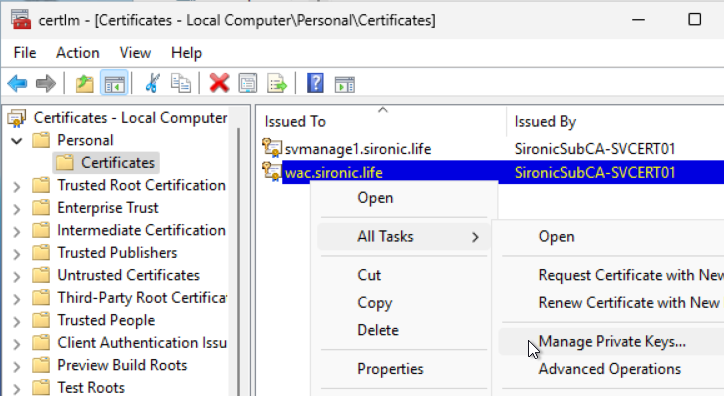
- Expand Personal and Certificates. Locate the certificate to use for Windows Admin Center. Right-click it, hover over All Tasks , and choose Manage Private Keys.
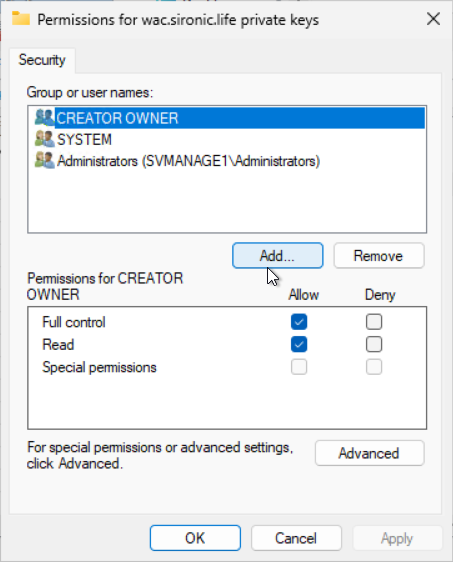
- In the security dialog, click the Add button.
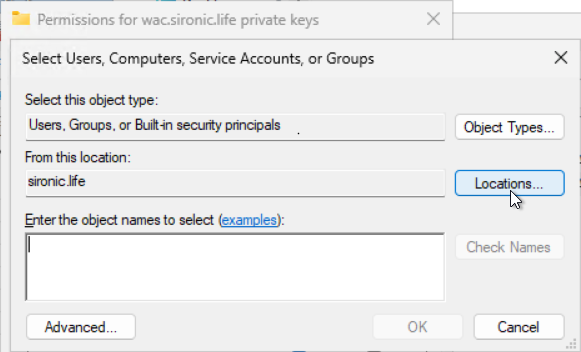
- You need to add the “Network Service” account. If the computer belongs to a domain, it will default to searching for a domain user account. Override by clicking Locations.
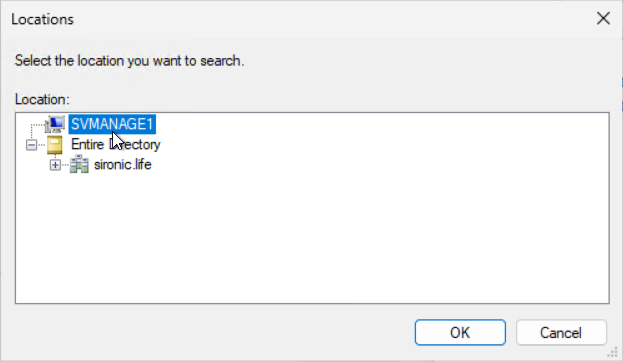
- In the locations dialog, click the local machine at the top.
- Back in the select dialog, type “Network Service” into the text box (case does not matter). Click Check Names to ensure that you have entered the name properly. As an alternative to going through the Locations selection, you can type the computer name directly into the text box, followed by a backslash, then the service account name, e.g. “svmanage1\network service”. Click OK once the dialog has identified the account.
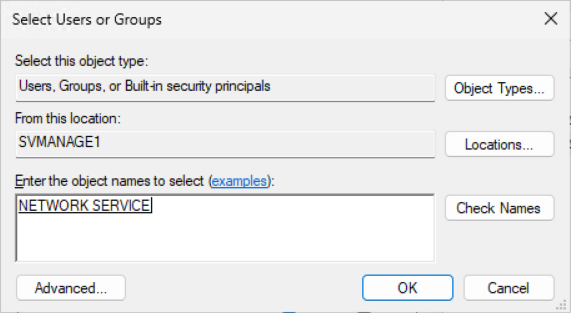
- Back in the security dialog, an item titled NETWORK SERVICE will appear. Windows will have given it Full control permissions. Reduce it to “Read”. Click OK.
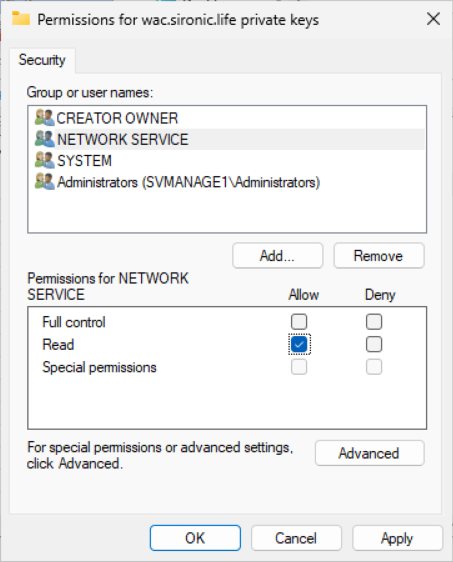
The Windows Admin Center site will now open normally. You do not need to restart anything. Note that if you later remove this permission, Windows Admin Center will continue to operate temporarily. Without the permission, it will absolutely stop working at the next reset of the “Windows Admin Center” service.
Additional Information
As of this writing, Microsoft has not said whether you can safely change the account that runs the Windows Admin Center service. If you do, then you will need to grant the same permission on the certificate to that account. v1 ran as “Local System” (SYSTEM), which has “Full Control” by default. “Local System” cannot access network-based resources without overrides, which is probably why v2 runs under “Network Service”.
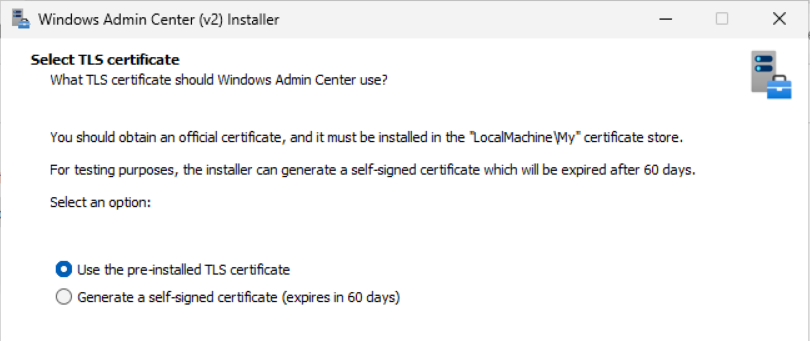
The installer does not warn when the service account lacks the correct permissions. As seen in the following screenshot, it lists some prerequisites, but not the need for anything other than default permissions:
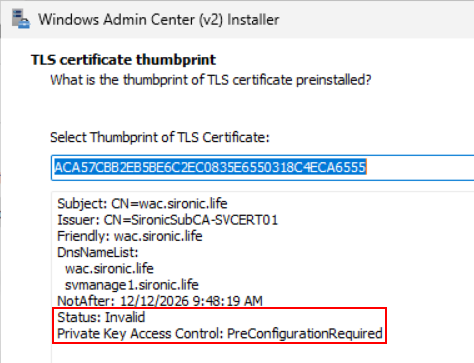
When you choose a certificate, the installer may mark it as “invalid” and include a line that says “PreConfigurationRequired”. However, it includes the same lines even if you have set the correct permission. I do not know what criteria it uses to mark the certificate as invalid. Mine works just fine.
So that it has been said, this problem absolutely does not make it better to use a self-signed certificate. I did not even test to find out if the problem also occurs with self-signed certificates. They are less than useless and not worth the time to investigate.